

1. Introduction
This article is a summary of a journey. A journey of discovery and wonder. Discovering why a migration is such a scary endeavour and wondering why you decided to become a Software Engineer. As the reader of this article, you will not (necessarily) experience the frustrations and struggles accompanied with the migration process, and that in itself is a reason to publish this article. Please remember that there is no silver bullet for every application and therefore there may be things in this article that won’t be 100% compatible with your scenario, however my hope is that this article serves as a guideline that could help you avoid hours of frustration and confusion.
2. Before we start
First I would like to get something out of the way. Deploying a .Net web application to App Services is really not difficult at all. Setting up a proper one-click build and deploy environment via a build agent such as Team City is where most of the difficulty may come in. You can deploy to Azure App Services directly from your Visual Studio IDE environment (Version depending) by simply right-clicking the project you would like to deploy, clicking publish and following the publish wizard for Azure App Services. In fact, this is exactly how we will start off.
Please note that there are several ways of deploying web applications to Azure App Services and that this article will describe how to deploy via a file system deploy/publish pushed to an Azure local git repository which then gets deployed using the Azure “Kudu” engine. This article however still contains topics and techniques that can be applied to any kind of Azure App Service deployment. For a list of all the deployment options for App Services please see the deployment documentation here.
Always use the latest version of Visual Studio, you can buy a license from the Microsoft store. Buy Visual Studio Professional
3. First Steps: Setup Azure App Service
Before we can get started we need to setup an App Service to deploy to. To do this, llog into the Azure portal, navigate to App Services and follow the wizard to add a normal “Web App”. Enter a name for your App and assign the App to a resource group. If this is your first App Service App, then create a new resource group with an appropriate name such as “MyCompanyAppServices”. Keep the Apps in a different resource group than the ones you are already using for your VM IIS Apps. The last thing to do is to specify your App Service plan. Start off by selecting the “Free” plan as we can upgrade this at any time. Proceed to create the Web App.
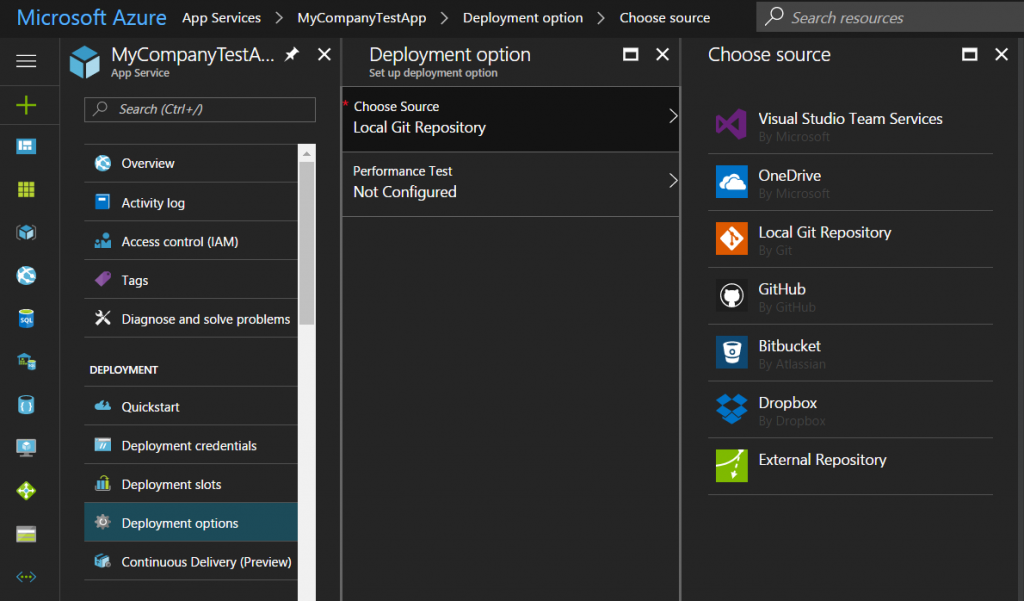
You should now have a resource group containing an App Service plan with one Web App inside it. On the left-hand navigation bar scroll down to the “Deployments” section and select “Deployment options”. Make “Local Git Repository” your deployment source. If you now scroll down to “Properties” section in your Web App side navigation tab, you should find a new property called “GIT URL” with a link to the Azure Git repository for your App. We will be using this later in our deployment process.


4. The first deployment test
Now that we have a Web App running on Azure we can setup our deployment process. It is important to ensure you are using the latest version of Azure SDK, so make sure the latest version is installed on your local machine and referenced throughout your project. Let’s first test that we can successfully deploy our Web App to Azure via our IDE. This will be a test to see if everything we setup is successful and that we can actually deploy to the App Service. You will need Visual Studio Community 2015 or higher to publish to App Services from the IDE and for support of the latest Azure SDK and Azure tools required by App Services.
Open your solution in Visual Studio and clean and rebuild your solution. After your solution has been opened sign-in to Visual Studio with the same account as the account used to create the Web App on Azure. After signing in, navigate to the project that you would like to deploy. This will work for a single project solutions as well as with more complex multi-project solutions with micro-services. Right click on the project and select “Publish…”. On the first page, specify “Microsoft Azure App Service” as your publish target. Select the correct subscription, resource group and Web App you had setup earlier. Now click ok and wait for VS to setup everything via the Azure authentication. If all went well the publish wizard should look similar to the image below. You can validate the connection and then click publish.
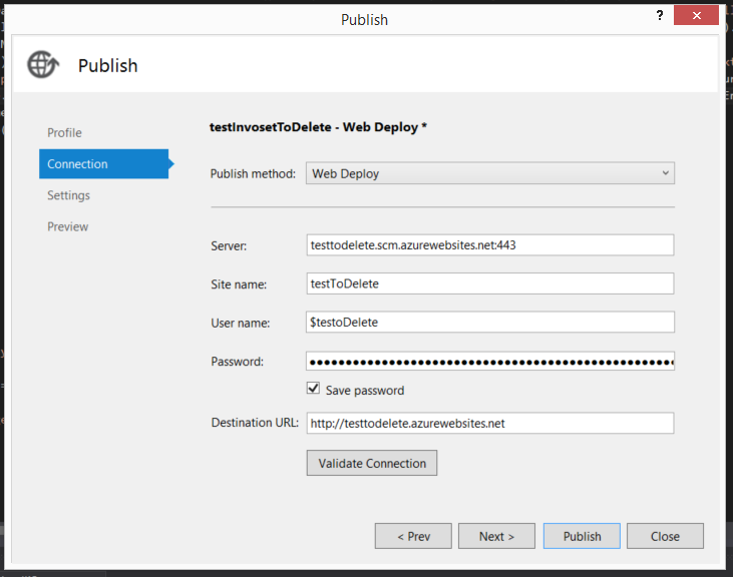
When this is done, navigate to the Azure portal and try to browse your web app. You should be able to see your default login or first screen. Obviously, any authentication or page making a connection to a database should fail. The goal for now is just to see your application on the Azure site.
5. Setup deployment publish profile
What we achieved in the previous step was a basic web deploy to the Kudu service running on Azure. What we will be doing next is creating a Powershell script that will do a File System deployment to some local directory in release mode, then initialising a new git repository and pushing the published web app to the Azure Git repository and having Kudu take care of placing the files in the right place. It may be wise to create a new Git branch to work on as we will be making some changes to the project and solution next. Don’t close Visual Studio yet, as we will still be using the IDE to create a publish profile for our deployment. Please keep in mind that you could rather use a build script such as contained in a NANT file instead of a publish profile. As long as you understand how to correctly set properties and pass parameters to the MSBUILD agent, you can make use of either approach.
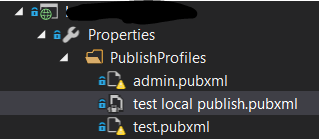
Navigate in the Solution Explorer to the project you have just published to the App Service. Expand the project properties and you should see a folder called “PublishProfiles” that has now been created. In this folder you will find the profile of our previous deployment to the App Service. Ensure that this file is named appropriately and that it has been included in your source control. We will now be making some changes to the publish profile to ensure our published app is ready to be pushed to Azure’s Git repository. Some of the most important properties that we need to specify include the following:
MSBuild Properties
- WebPublishMethod: To specify deployment output format
- PrecompileBeforePublish: To compile the dll’s correctly
- VisualStudioVersion: To ensure MSBUILD compiles to project using the correct Toolset compatible with the Azure SDK. Click here for more information.
- Configuration: To specify the “Release” build method for our project.
- publishUrl: To specify where the published project files should be copied to
- IntermediateOutputPath: To specify the temporary location where files are published to before being copied during the build process. This is important, since we may encounter problems with MSBUILD cleaning up the default “obj” directory during some part of the deployment process, before copying the files over to the output directory
- DeployOnBuild: Ensures that the project files get pushed to the publishUrl (directory) after being built. If this is set to false, the published project will not get copied over.
Below is the publish profile that I have setup on my project. For more information on some of the properties contained in MSBUILD see this link.
<Project ToolsVersion=”4.0″ xmlns=”http://schemas.microsoft.com/developer/msbuild/2003″>
<PropertyGroup>
<WebPublishMethod>FileSystem</WebPublishMethod>
<LastUsedBuildConfiguration>Release</LastUsedBuildConfiguration>
<LastUsedPlatform>Any CPU</LastUsedPlatform>
<SiteUrlToLaunchAfterPublish />
<LaunchSiteAfterPublish>True</LaunchSiteAfterPublish>
<PrecompileBeforePublish>True</PrecompileBeforePublish>
<VisualStudioVersion>14.0</VisualStudioVersion>
<EnableUpdateable>True</EnableUpdateable>
<Configuration>Release</Configuration>
<DebugSymbols>False</DebugSymbols>
<WDPMergeOption>DonotMerge</WDPMergeOption>
<ExcludeApp_Data>False</ExcludeApp_Data>
<publishUrl>D:\Websites\MyApp</publishUrl>
<DeployOnBuild>True</DeployOnBuild>
<IntermediateOutputPath >D:\Websites\MyApp\obj\</IntermediateOutputPath>
<DeleteExistingFiles>True</DeleteExistingFiles>
</PropertyGroup>
</Project>
6. Setup deployments locally using PowerShell
We are now ready to string together some commands to publish our project in accordance with the publish profile, initialise a new git repository and push the deployed project to Azure App Services. To publish a project for which a publish profile file has been created should be an easy task. According to online resources and documentation you will simply need the following command all in one line:
C:\WINDOWS\Microsoft.NET\Framework\v4.0.30319\msbuild.exe MyProject.Admin.csproj /p:VisualStudioVersion=14.0 /p:PublishProfile=’myPublishProfile’
However, if you are migrating from an existing functioning solution, you may receive an error saying something such as:
Error : Can’t find the valid AspnetMergePath <project directory>.csproj

How does this happen? Well it seems to be a bug that occurs between solutions created on a different version of Visual Studio. MSBuild cannot resolve the path to the AspMerger which is used during the build process. This problem can be solved by either changing the project settings or by adding the following additional line to the above command
/p:AspnetMergePath=”C:\Program Files (x86)\Microsoft SDKs\Windows\v10.0A\bin\NETFX 4.6 Tools\”
This tells MSBuild where to look for the AspnetMerge tool it uses while building projects. The final command will therefore look like this:
C:\WINDOWS\Microsoft.NET\Framework\v4.0.30319\msbuild.exe MyProject.Admin.csproj /p:VisualStudioVersion=14.0 /p:PublishProfile=’myPublishProfile’ /p:AspnetMergePath=”C:\Program Files (x86)\Microsoft SDKs\Windows\v10.0A\bin\NETFX 4.6 Tools\”
Note: You can add this property as an argument in your build script, however this has given me problems on occasions where MSBuild could still not find the correct tools directory.
MSBuild will now run and publish your project to the directory specified in your publish profile (publishUrl property). After MSBuild completes successfully, navigate to the specified publish directory to ensure your files are all there. As an additional step of validation, you can setup an IIS instance pointing at your published directory to ensure that the Web App has been deployed correctly.
Next we need to push the output directory (which should like the general project ‘bin’ directory) to Azure Git.
In PowerShell (or other command-line tool) navigate to the new directory we just published to and run the following commands to initialise a new git directory, add and commit all files and push to the Azure Git repository of our App Service Web App:
git init
git add -A
git commit -m “My local commit”
git push https://<Username>:<Password>@<appName>.scm.azurewebsites.net:443/<AppName>.git master –force
Remove-Item -Recurse -Force .git
The last step will delete the created “.git” folder and its contents. This is a clean-up step to ensure no new git repos are created on your machine and will allow you to always run the same commands in a directory. The Git URL can be found on the Azure portal under the properties section of the Web App. Make Sure to use the username and password as specified in the “Deployment Credentials” section of your Web App. If all went well you should receive a message stating that Kudu has successfully deployed your Web Project and can once again browse to your website. Congratulations you have now successfully deployed to Azure App Services via executed commands using a publish profile for your project.
7. One-click deploy using a Build Agent
The last step is to now take the commands we have written and use them on a build agent (such as Team City) in order to create a one-click automated deployment for our project. The first build step we will setup may differ from project to project. In our web application, we make use of Nant Scripts to switch all web config mappings for our QA, Staging and Live instances and apply other changes needed for our project. You may or may not be using such an approach, but if you are make sure this step is run first (after installing all dependencies such as NuGet on the agent).
The next build step the agent should execute would be the command to build and publish the project. Ensure you specify the working directory to point to the directory containing your *.csproj project file. Then specify the following command to be executed:
C:\WINDOWS\Microsoft.NET\Framework\v4.0.30319\msbuild.exe MyProject.Admin.csproj /p:VisualStudioVersion=14.0 /p:PublishProfile=’myPublishProfile’ /p:AspnetMergePath=”C:\Program Files (x86)\Microsoft SDKs\Windows\v10.0A\bin\NETFX 4.6 Tools\”
Lastly we specify the same set of commands we used previously to push our new published project to Azure to do the same, this time from the build agent. Ensure you set the working directory to now point to the output directory the project had been published to and then execute:
git init
git add -A
git commit -m “My local commit”
git push https://<Username>:<Password>@<appName>.scm.azurewebsites.net:443/<AppName>.git master –force
Remove-Item -Recurse -Force .git
You are now ready to run your build agent and deploy to Azure App Service. You can duplicate these steps for each project within your solution you wish to deploy. Browse to your website and attempt to login or visit a web page making use of a database connection. You should get an authentication error of some sort which we will investigate next.
8. Setup a VNet for connection to database on Azure VM
The reason you should be getting a SQL connection/authentication error is that we have now created a Web App in a resource group and essentially a “VNet” or “Virtual Network” outside of the VNet of our Azure VM’s. If you would like to read up further on how VNets work you can visit the documentation page here.
In short, what you need to do to open connections between your SQL VM and newly created App Service is to setup a “Point-to-Site” configuration for your VNet and have your web App Point to the VNet. Detail about VNet’s and their usage extends beyond the scope of this article and we will focus on how quickly establish a connection to an existing network where your VM’s are contained.
On the Azure portal, find your existing VNet in which your SQL VM(s) are contained. You should see a “disabled” block in the “Overview” section called “VPN Connections”. Clicking on this block will take you to a screen containing information about the VPN connections and Gateway. Click the “Add” button on this screen and select the Point-to-Site option and setup your Address Range as required along with ticking the checkbox to immediately create the gateway.

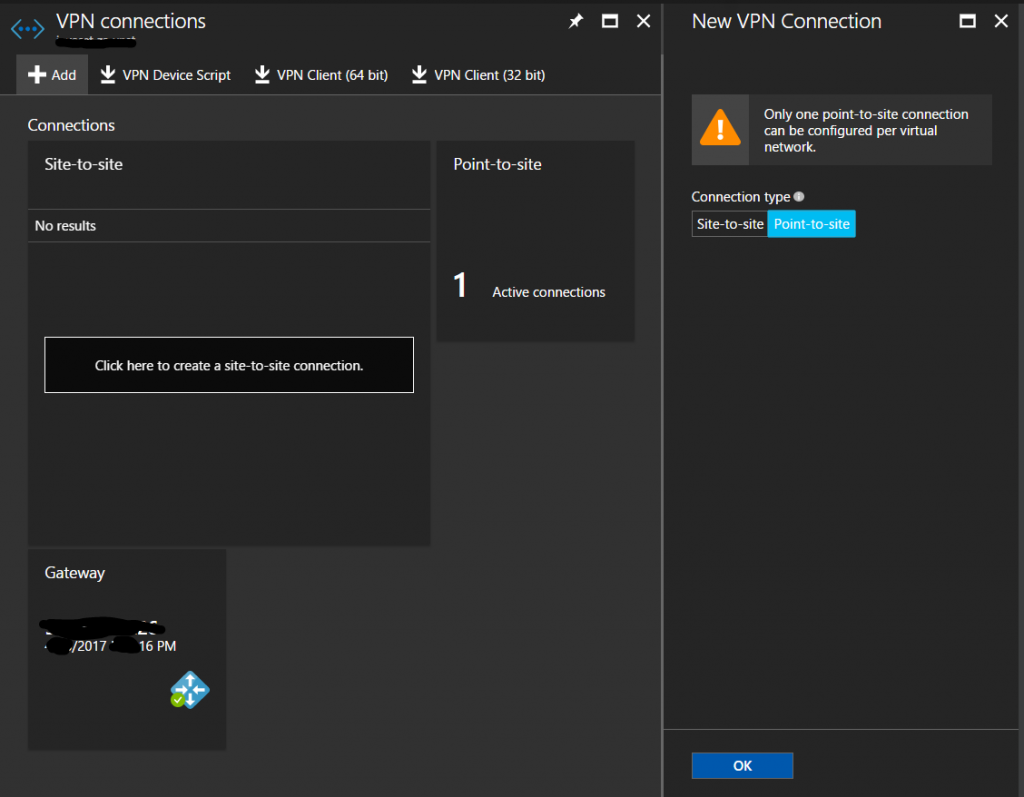
After you have setup the VPN, navigate to your new Web App and select the “Networking” section from the side navigation. You should see a section labelled “VNET Integration”. Click on the “Setup” link underneath it. On the next screen, find the Virtual Network where your SQL VM(s) is hosted and select it. You are now connected to the virtual network of your Azure SQL VM’s. Browse to your application and if all went well you should now be able to connect to the database.
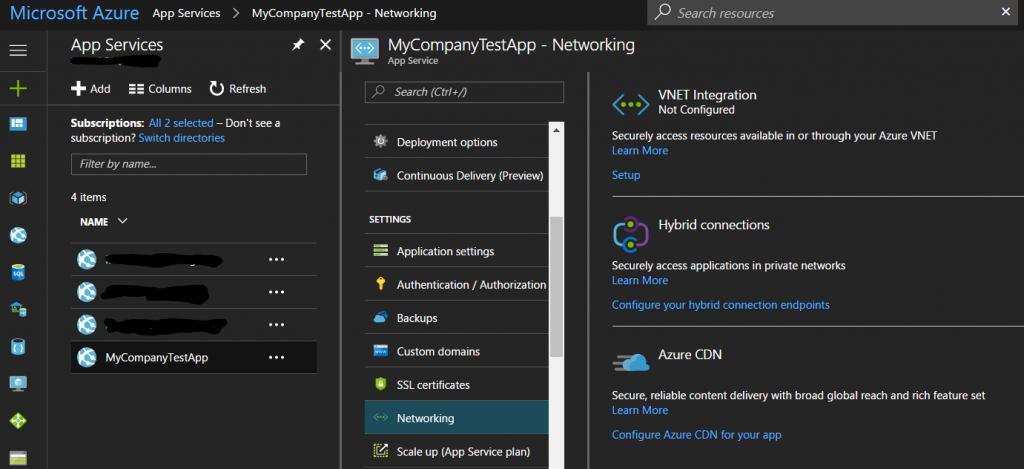
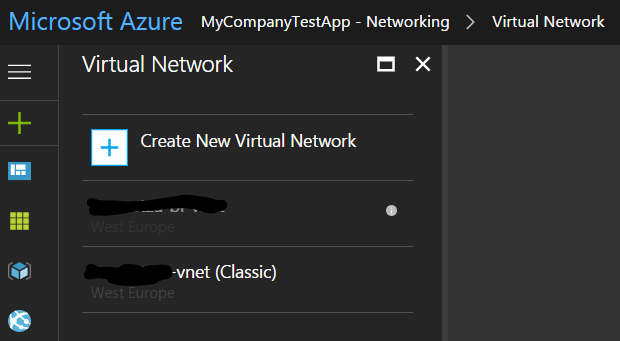
Congratulations you have taken your first steps to migrating your existing web app to App Services. Remember that any worker jobs you have created will still need to function on the previous VM, until you have migrated all worker jobs to “Web Jobs” and Azure Functions in your App Service app.
9. Benefits of App Service Migration
As an additional point, I would like to point out some of the immediate benefits of hosting a web app(s) on App Services instead of on an Azure VM(s). This is just a summary of some of the benefits our team experienced and there may be other benefits not mentioned here. Feel free to contact me or comment on this article if you feel there are any other benefits I should include in this article.
9.1 Faster deployments for large complex solutions
Our solution was a large enterprise solution consisting of several independent projects some of which had there own portal. If you have a similar solution with many projects and/or micro services in your solution, migrating to App Services will improve deployment time as you can deploy each project independently and can now deploy all projects in parallel. In our example, we improved production deployment time from 15 – 20 minutes down to 2-6 minutes.
9.2 Easier and faster deployment of changes and bug fixes
Since we are now capable of deploying each project independently, we can make changes to a single project and deploy that project with the new changes in as little as 2 minutes. Previously, if changes were to be deployed to a single project, the entire solution would need to be deployed and al files copied over to the Azure VM.
9.3 One-click deployments
After everything has been setup correctly, we can now deploy to any portal with a single click. This already improves deployment time and removes the risk of human error during deployments.
9.4 Visual Studio integration
If you are logged-in to VS with your Azure account, you gain access to a range of tools exclusively for App Service Apps. Want to remote debug an issue on the staging site? No problem, just click once and attach directly to the app process. You can now click through the staging site and follow along the code execution right from VS on your local machine. This is but one of the many integrations options available to help ease a developer’s life.
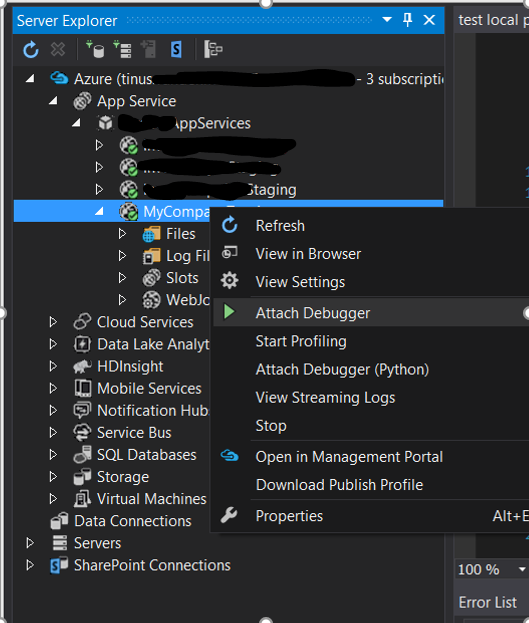
9.5 Easier scaling or versioning
Aside from the ease of scaling your web app in terms of hardware availability, App Services also allows us to quickly and easily deploy new versions of our apps quickly and easily. Is the business scaling and thinking of leasing out the app to other companies in a multi-tenant fashion? We can now make add a new App Service app and deploy the changed app in the same manner as our other deployments to the new App Service. No struggling with VM or IIS setup. Quick and easy new releases of the software is now easier than ever.s






1 Comment
I loved this post! Think it can be really useful when moving to Azure. Keep up fantastic
work.