



Part 2 – Securing your SQL Server and database instance
This post forms part of a series of articles describing the start to finish process of setting up an Azure Web App and SQL Database that is production ready.
We will be following a few steps and covering some simple, yet important topics on Azure SQL DB Security. Any detail has been purposely left out to improve the readability of this post. Feel free to contact me for any clarity or questions on the content of this post.
In Summary, we will be doing the following to secure our database environment.
- Configure the Azure SQL DB Firewall
- Why not a VNET?
- Setup multiple SQL Logins to separate responsibilities
- SQL Server Users vs Database Contained Users
- Database Authorization
- Create SQL Roles that are sufficient for Web Apps connecting to the database
- Setup Database Auditing
- Data Lockdown: Optional Considerations
1. Configure the Azure SQL DB Firewall
Before we can specify the database firewall rules, we need to know what IP addresses could be used by our Web App. Navigate to “App Services” and select the Web App you just created. In the “Settings” section of the Web App select “Properties”. In here you can see and copy

Navigate to the Azure SQL Database instance we created in Part 1. We can do this by clicking on “SQL databases”, clicking on the server instance we created (our example was “lekkersitesqldb”).
Azure has recently changed their services to set the firewall to block any connection to the database and server that originate from outside the Azure services environment by default. Our web-app will be using a range of outgoing IP addresses and we will need to “whitelist” these IP’s in order for our application to communicate with the Database.
Note: This example focuses on setting direct database-level firewalls. Server-level firewalls can also be set to allow group access to multiple databases
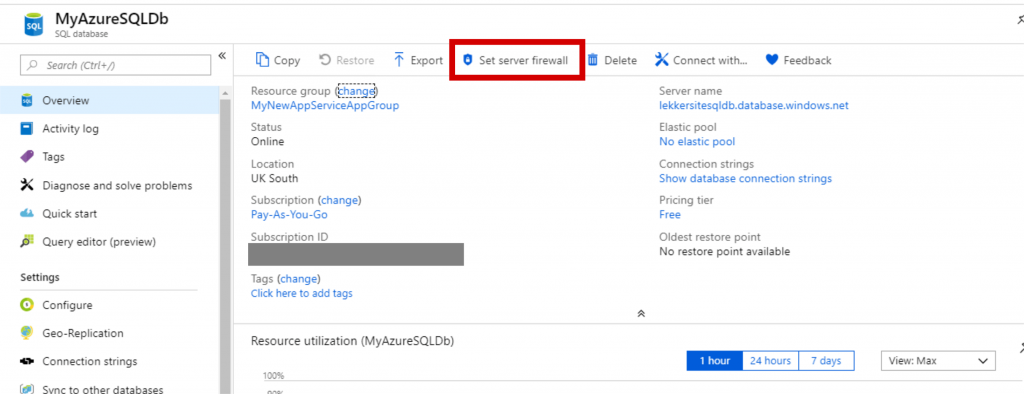
First, click the top link to “Add client IP”. This will set the current IP you are using on your machine on the whitelist. We will use this to configure some security on the database server. Important: We will need to remove this IP after we are done with the configuration.

2. Setup multiple SQL Logins to separate responsibilities
It is important to create SQL Logins and Create Database Users for all the different entities or services that need to connect to a database. As an example, you could need different SQL Logins and users for:
- A Web App connecting to your database
- The DBA
- The software support team
- A reporting system/service (ex: PowerBI)
Since we allowed our machine’s IP through the SQL firewall we can now log in to the server using SQL Server Management Studio (SSMS).





1 Comment
Pingback: Azure Web App with SQL DB - from Start to Secure
Edit this
Hey! comments are closed.