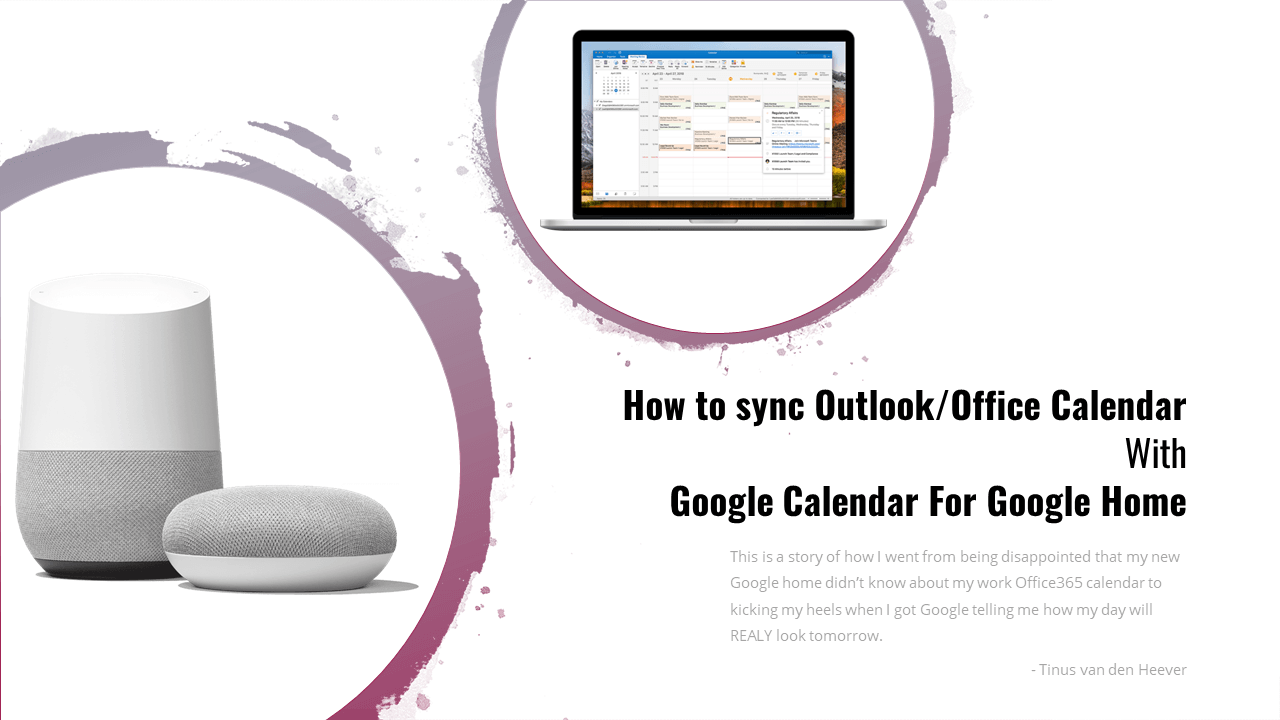

The Corona pandemic of 2020 hit and after 100 days of lockdown, I decided it’s time to spoil myself with a Google Home Mini as an addition to my smart lights and switches for my home. After setting up the Google Home mini with the iPhone Home app, I did what we all do the first time we set up our smart assistants – ask them everything and anything. I had a blast until I asked Google what my calendar looks like the following day and Google replied: “There is nothing scheduled in your calendar for tomorrow”.
Like most of us, I conduct my business communications and scheduling using Outlook on Office 365. Therefore, I was understandably surprised when I found no simple way of getting Google to know about my Outlook calendar or even finding a simple way to sync my Outlook calendar to my Google calendar (Google Home can only view your default calendar and not subsequent calendars you add or subscribe to).
Here is what you will need to set up a process to sync your Outlook calendar entries to your default Google calendar every 5 or 10 minutes.
- A Google account
- An Office 365 account
- A little bit of courage – you will have to copy and paste some code and maybe even change a simple line
Step 1: Getting ready
Open up four separate browser tabs or windows and open the following links in each of them:
- https://calendar.google.com/
- https://outlook.office.com
- https://github.com/derekantrican/GAS-ICS-Sync
- https://script.google.com
On the Office Outlook window, click the gear icon at the top right-hand corner, then scroll down and click on “View all Outlook settings”. After that, choose “Calendar” then “Shared calendars“. Select your main calendar from the first dropdown menu and then select “Can view all details” from the second dropdown menu and click the “Publish” button. Two new links will now appear, “HTML” and “ICS”. Copy the ICS link and save it somewhere like in a Notepad or Word file.


Step 2: Welcome to Google Apps Script
Next, we will set up our app on Google Apps Script. You will need a Google (Gmail) account to access Google Apps Scripts. If you don’t have an account or want a new account you can visit https://accounts.google.com/ to sign up. Once you have the Google account you plan to use with your Google Home ready, you can go to https://script.google.com to get started.
Click on “+ New project” to create a new script project. In the top left-hand corner, click on “Untitled project” and give your project a name such as “Outlook to Google Sync”. Before we go any further open this link >> https://github.com/derekantrican/GAS-ICS-Sync in a new tab/window. It’s time for us to copy-paste some code.

Copying the code we need
For updated steps on the setup, you can visit this link. I have described the steps in my own words below.
First click on the “Code.gs” file as indicated by the “1” in the screenshot below, then click on “Raw” as shown in the subsequent screenshot.


Now you should see something similar to the above. Copy all the code and paste it in the Google Scripts “Code.gs” file as shown below.

Now, inside your Google App Script project, click on “File” -> “New” -> “Script File”. Call this file “Helpers.gs”. Now, following the approach we did for the Code.gs file, navigate to the raw code of the Helpers.gs file and copy it’s contents into this folder. Repeat these steps for the “ical.js.gs” and “tzid.gs” files. Once this is done, your Scripts project should look something like this.

We now have only 1 more file to create and copy. In your Google App Scripts project click on “View” – “Show manifest file” and the appsscript.json file should now appear in your project. Now navigate to the appsscript.json file on the GitHub page and copy its raw content into this file in your project. The last thing left is to make sure each file is saved (no red star should be showing). We are now almost ready to run our project.
Step 3: A Small code change
Open up your Notepad or Word file where you saved the link to your Outlook ICS calendar. We are now going to copy that link into the “Code.gs” file in your Google Apps project. After the comma, add your Gmail account email address as shown below. You will see two more bracket code blocks below this line ( [ ] – as shown below). Add “//” in front of them to ensure they won’t be executed. After this, we are all set to test out our script.

You can test that everything worked by clicking “Run” -> “Run function” -> “Start Sync”. The first time you run your script, you will be asked to allow this script to communicate with your Google calendar. You can view this video to show you how to set this up > https://youtu.be/_5k10maGtek?t=1m22s
Once the code starts running, go to https://calendar.google.com/ to see if your calendar is being populated
Final step: Trigger Schedule
The final step is to set up a trigger to sync our Outlook calendar to Google Calendar every 10 minutes. Please note that the script we just installed has an “install” function that automatically sets up a trigger, but I will show you how to do this yourself so you can change this in future without having to look at the code.
In Google App Scripts, make sure your project is saved and then go back to the home page – https://script.google.com. In the “My Projects” section look for the project you just created and click on the 3 dots on the far right side to open a sub-menu where you can click on “Triggers” at the bottom.
Look for a blue button in the bottom right corner called “Add Trigger” and click on it. In the first dropdown, select “startSync” as the function to run. Next, ensure “event source” is set to “Time-driven”, the type of trigger is set to “Minutes timer” and the interval is set to “Every 10 minutes”. Use the below screenshot to compare your settings and then click save when you are done.

You are now all set. Your calendar should automatically synchronize with your Google Calendar every 10 minutes. You can now ask Google “Hey Google, when is my next meeting?” and Google will read your events off of your Google Calendar.